
I think it’s called Vibe Coding?
Today I engaged for the first time with Claude 3.7 and Wow its powerful. I first asked it to have a go at modeling a chair which it did ok at (see another post) but then I had the idea of doing a simple Markdown editor as a web application.
The first result looked like this (right first time) and can be test driven here ( https://claude.site/artifacts/336b4198-66cb-4dae-b78f-df470d674886 )
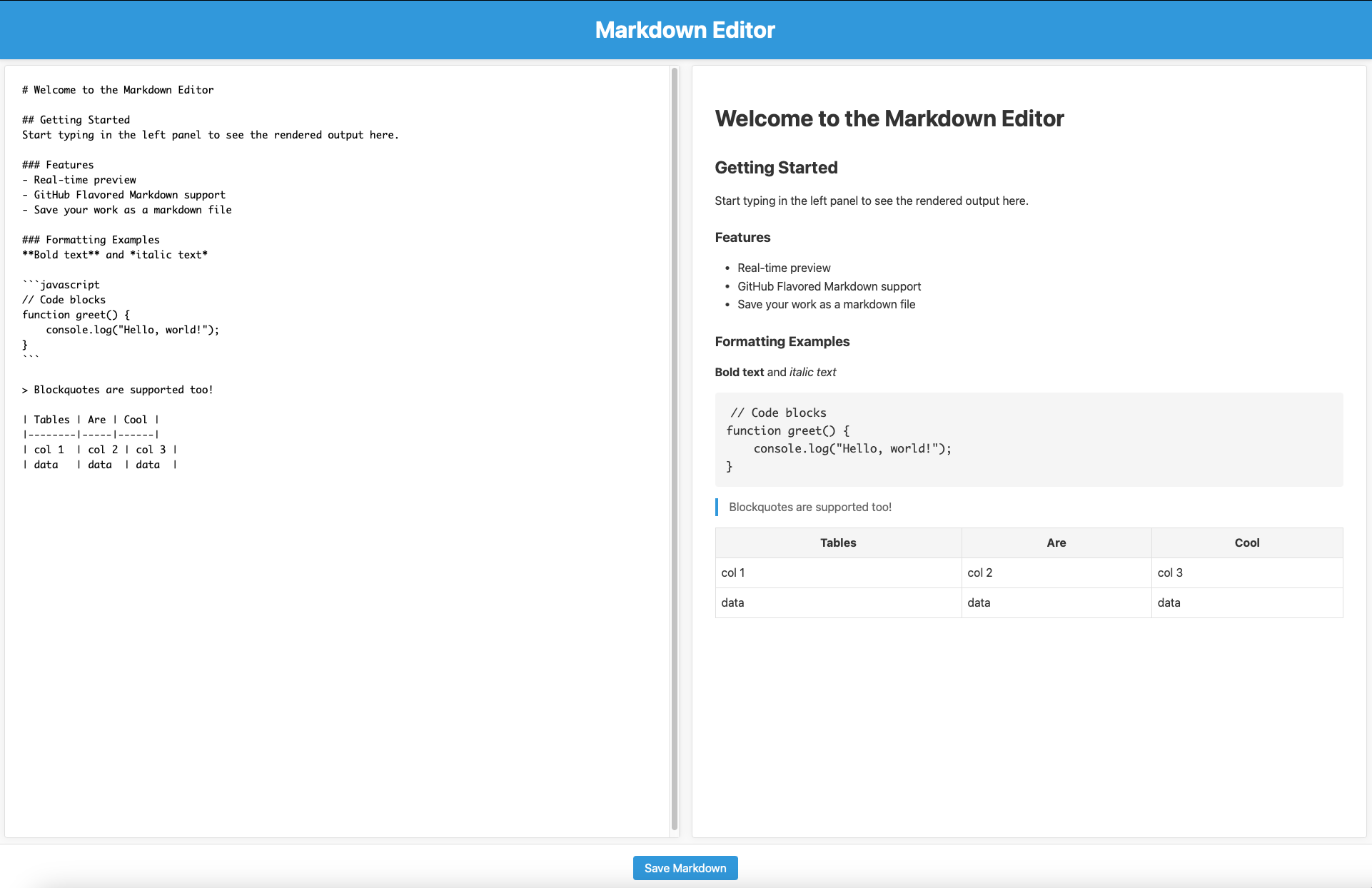
The final result after about 10 minutes looks like this (below) and is a genuinely useful little application that runs from a single HTML file locally in a browser window. This would solve my need for a Markdown Editor on a Raspberry Pi.

The following is Claude’s own account of the process of creating this application.
Note This Blog Post was also written by the mighty Claude and reflects a level of coding skill far above my own
When I set out to create a browser-based Markdown editor, I had a simple goal in mind: build a straightforward split-screen interface that would allow users to write Markdown on one side and see the rendered output on the other. What started as a simple concept evolved into a fully-featured application – and all within a single HTML file with no external dependencies (aside from the Markdown parser library).
In this post, I’ll share the journey of creating this editor, the decisions made along the way, and how a minimal application grew into something much more powerful while maintaining its simplicity.
The Initial Concept
The project began with a modest set of requirements:
- A split-screen interface with a Markdown editor on the left and rendered preview on the right
- The ability to save the Markdown file
- Everything contained in a single HTML file
This “single file” constraint was both a limitation and a creative challenge. It meant finding ways to pack functionality into a compact package while ensuring the application remained maintainable and user-friendly.
Building the Foundation
The first version came together quickly. Using HTML, CSS, and JavaScript, I created a basic two-panel layout with a simple textarea for input and a div for the rendered output. For the Markdown parsing, I chose the popular marked.js library, which could be easily included via CDN.
The core functionality was straightforward:
- Capture input from the textarea
- Process it through the Markdown parser
- Display the rendered HTML in the preview panel
- Provide a button to download the Markdown content
With just about 150 lines of code, the basic functionality was working. But as soon as I started using it, I realized there was significant room for improvement.
From Minimal to Feature-Rich
As I used the initial version, I began identifying features that would make the editor genuinely useful for everyday writing. I expanded the application with:
1. Auto-Save with Local Storage
Nothing is more frustrating than losing your work. Adding auto-save functionality with browser localStorage meant users could close the browser and return to find their work intact. A subtle “Changes saved” indicator provides confidence without being distracting.
2. Markdown Toolbar
While Markdown is designed to be simple to write, having a toolbar with buttons for common formatting makes the editor more accessible for beginners and speeds up workflow for experienced users. Implementing the toolbar required careful consideration of text selection and insertion to ensure a smooth user experience.
3. Theming and Layout Options
Different users have different preferences, so I added:
- Light and dark themes with a simple toggle
- The ability to switch between horizontal and vertical layouts
- Persistent settings that remember user preferences
4. Enhanced Export Options
Beyond just saving Markdown files, the editor now supports:
- Exporting as HTML with proper formatting
- Copying either Markdown or HTML to the clipboard
- Custom filenames for saved documents
- Print-friendly output formatting
5. User Experience Improvements
Small details often make the biggest difference in usability:
- Document statistics (word count, reading time)
- File import for editing existing documents
- A clear button to start fresh
- First-time user instructions
- Mobile-responsive design
Technical Challenges and Solutions
Single File Architecture
Maintaining everything in a single HTML file required careful organization. I structured the file with clear sections for HTML, CSS, and JavaScript, using comments to delineate different functional areas.
Cross-Browser Compatibility
One significant challenge was handling text insertion in the editor across different browsers. The initial implementation used document.execCommand('insertText'), which is now deprecated. Switching to direct manipulation of the textarea’s value property provided better compatibility:
// Instead of:
document.execCommand('insertText', false, replacement);

// Using direct manipulation:
const newValue = editor.value.substring(0, start) + replacement + editor.value.substring(end);
editor.value = newValue;
Responsive Design
Creating a split interface that works well on both desktop and mobile required careful CSS. The solution was a responsive layout that changes from side-by-side panels on desktop to stacked panels on mobile:
@media (max-width: 768px) {
    .container:not(.vertical) {
        flex-direction: column;
    }

    .panel {
        margin: 0.25rem 0.5rem;
    }
}
State Management
Without a framework, maintaining application state required thoughtful event handling and localStorage interaction. Each user action needed to update the UI, save content, and ensure all components remained in sync.
What I Learned
This project reinforced several important principles:
- Start simple, then iterate. The initial version was basic but functional, providing a foundation to build upon.
- User feedback drives features. Many improvements came from actually using the editor and identifying pain points.
- Constraints breed creativity. The single-file requirement pushed me to find elegant solutions rather than reaching for external libraries.
- Small details matter. Features like auto-save and keyboard shortcuts significantly improve usability without adding visual complexity.
- Accessibility is essential. Ensuring the editor works across devices, browsers, and for users with different preferences makes it truly useful.
Future Possibilities
While the current version accomplishes its goals, there are always opportunities for enhancement:
- Syntax highlighting for code blocks
- Collaborative editing capabilities
- Offline PWA functionality
- Enhanced keyboard shortcuts
- Customizable themes and fonts
The beauty of this project is that each new feature can be added while maintaining the single-file architecture, allowing it to grow in capability without growing in complexity.
Conclusion
What began as a simple Markdown editor evolved into a feature-rich application that demonstrates how much can be accomplished with just HTML, CSS, and JavaScript. By focusing on user needs and iteratively improving the experience, a basic concept transformed into a practical tool that I use daily.
The project serves as a reminder that software doesn’t need to be complex to be powerful. Sometimes, the most effective solutions are the simplest ones – even when they fit in a single file.
—
 Brief Moments of Clarity
Leave a comment